Lattice tab
The Lattice tab shows the loaded lattice as a graphical timeline plus a sequential listing and provides per-element editing. This is where you spend time when building or auditing a lattice.
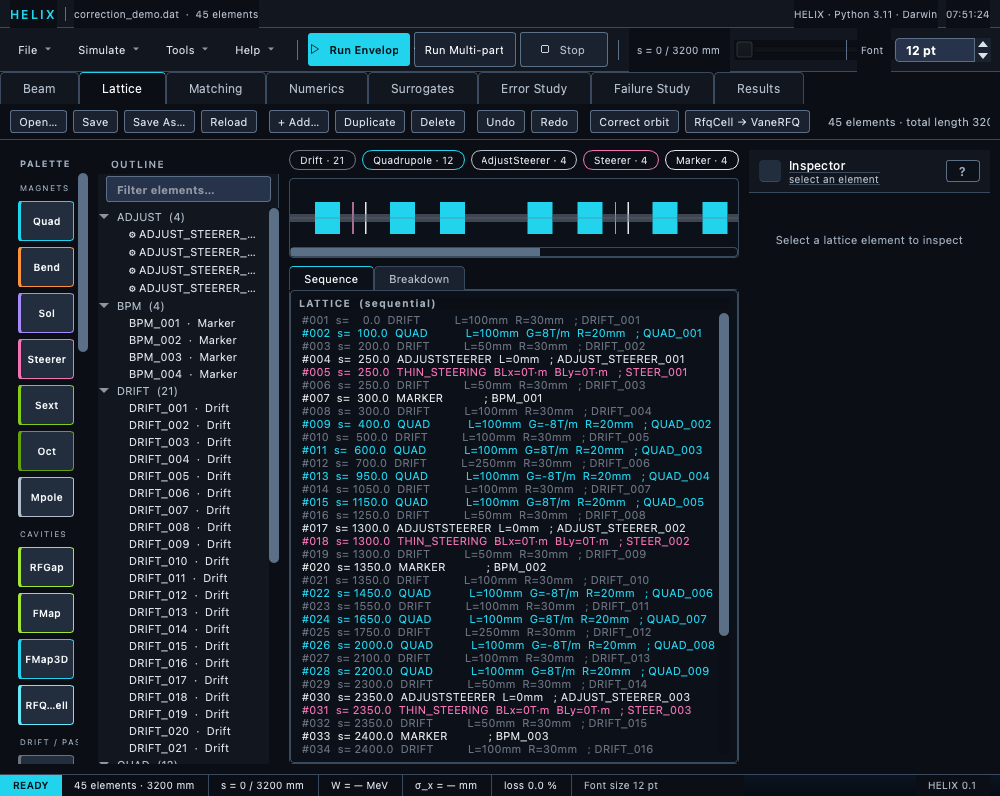
Lattice tab with the correction-demo lattice: palette, outline tree, type chips, timeline, sequence listing, and the inspector.
Layout
┌────────────────────────────────────────────────────────────────────┐
│ [Open…] [Save] [Save As…] [Reload]  [+ Add…] [Duplicate] [Delete]  │
│ [Undo] [Redo]  [Correct orbit] [RfqCell → VaneRFQ]   summary text  │
├─────────┬─────────────┬───────────────────────────────┬────────────┤
│ Palette │ Outline     │ [type chips: Drift Quad Cav …]│ Inspector  │
│         │ tree        │ ───────────────────────────── │            │
│  Drift  │             │        Element timeline       │ Name: QF1  │
│  Quad   │  D0  Drift  │  ▓▓░░▓▓░░▓▓░░▓▓░░▓▓░░▓▓░░▓▓   │ Length: …  │
│  Cavity │  QF1 Quad   │ ───────────────────────────── │ Gradient:… │
│  Sole.  │  D1  Drift  │ ┌ Sequence ┬ Breakdown ┐      │ Aperture:… │
│  ...    │  QD1 Quad   │ │ card listing / per-   │     │ dx: … dy:… │
│         │  ...        │ │ type summary          │     │ ...        │
└─────────┴─────────────┴───────────────────────────────┴────────────┘
The toolbar strip (top) holds the file operations — Open…, Save, Save As…, Reload — followed by the edit buttons + Add…, Duplicate, Delete, Undo, Redo, then Correct orbit and RfqCell → VaneRFQ. The body is four columns: an element palette (drag or double-click to insert), the outline tree, the centre pane (type-chip filter strip + element timeline + a Sequence / Breakdown tabbed view), and the element inspector on the right.
Loading a lattice
Three paths:
- Lattice tab → Open… button.
- File menu → Open Lattice….
- Ctrl+O.
When a TraceWin <deck>.ini (the project options file) sits next to
the opened .dat, HELIX asks whether to import its beam into the
Beam tab;
No keeps the current beam. Opening a .lgproj never asks — the
project's saved beam wins.
The dialog accepts TraceWin .dat files, MAD-X .madx / .seq,
MAD8 .lat / .flat and Elegant .lte files, and — through the
optional lattix translator — Bmad .bmad, SciBmad .jl / .scibmad
and PALS .pals.yaml / .pals.json files; the file extension selects
the parser (see Importing MAD-X
lattices and
the sections that follow it). Errors and warnings appear in the status
bar; the warning count links to the console, where each downgraded or
dropped element is listed by name.
Reload re-parses the current file from disk, discarding in-memory
edits (after the unsaved-changes prompt) — handy when you edit the
.dat in an external editor.
Editing elements
Click any element in the timeline, the outline tree, or the Sequence listing. The inspector on the right shows all fields:
- Required parameters (length, gradient, etc.) at the top.
- Misalignment fields (dx, dy, dz, tilt_deg, ...) below.
- Field-error fields (gradient_rel, voltage_rel, ...) if applicable.
Edit any field; the change is applied immediately to the in-memory
Lattice (and reflected in any subsequent simulation run).
? help button (per-element manual)
The header row next to the element name contains a ? button (also
bound to F1). Clicking it opens the manual chapter for that element's
type in an inline popup rendered directly from the markdown source —
no browser, no broken styling. The popup stays open while you keep
editing parameters in the inspector so you can refer to the chapter
in parallel.
Right-click context menu
Right-click an element in the timeline or the outline tree for the edit menu: Insert before, Insert after, Duplicate, Delete, and Cut / Copy / Paste (an in-process clipboard; Paste inserts a deep copy after the selection).
Tools → Parameter Scan…
Element-parameter scans live in the Tools → Parameter Scan… dialog — a non-modal popup with its own Element dropdown, so it stays open while you keep working in the tabs. Pick:
- Element — any element in the loaded lattice.
- Parameter — any scalar attribute on the element (length, gradient, kb, ke, phase, …).
- From / to / N points — the scan range.
- Mode — Envelope (fast) or Multi-particle (slow but accurate) radio buttons.
- Output — what to plot on the y-axis. Choices include all RMS sizes (σ_x / σ_y / σ_φ / σ_W), every normalised emittance (ε_nx, ε_ny, ε_nz, ε_4D), the Balandin eigen-emittances ε_e1, ε_e2, transmission, exit kinetic energy, and exit Twiss α / β. Growth ratios (ε_out / ε_in) are available for the four emittance metrics. Halo_x / Halo_y are MP-only — they stay empty in Envelope mode (envelope doesn't model halo).
The scanned parameter is restored to its nominal value on completion, abort, or exception, so the lattice is never left modified by the scan. The inspector refreshes when the worker finishes so the spinbox shows the restored value.
Adding / removing / reordering
- Add: the + Add… toolbar button (Ins), the context-menu Insert before/after entries, or the palette — drag a type onto the timeline at the position you want, or double-click a palette entry to insert after the selection. FieldMap / FieldMap3D palette inserts open a file picker for the field data first.
- Duplicate: Duplicate button or Ctrl+D — inserts a clone right after the original.
- Remove: Delete button or Del. A Shift+Click multi-select on the timeline deletes all selected elements as one undoable step.
- Cut / Copy / Paste: Ctrl+X / Ctrl+C / Ctrl+V (also on the context menu).
- Reorder: drag-and-drop rows in the outline tree.
- Undo / Redo: Undo / Redo buttons or Ctrl+Z / Ctrl+Y (Ctrl+Shift+Z also redoes) — every insert, delete, move, and parameter edit goes through the command bus, so the full editing history is walkable.
The type-chip strip above the timeline filters by element type — click a chip to dim everything else, which makes quad or cavity patterns easy to eyeball on a long lattice. The Breakdown tab under the timeline shows a per-type count/length summary next to the default Sequence card listing.
Correct orbit
The Correct orbit toolbar button runs a one-shot orbit-correction
pass on the current lattice using its ADJUST_STEERER +
DIAG_POSITION cards (or BPM_* / STEER_* name patterns when no
cards are present). BPMs carrying DIAG_POSITION N X Y targets are
steered onto those targets (TraceWin "matched with diagnostics");
target-less BPMs are flattened to zero as before. BPM readings come
from multi-particle tracking of the configured beam. Steerer kicks
are applied through the command bus, so the pass is undoable. See
Running → GUI → Path D
and Errors → Orbit correction.
BPM targets…
The BPM targets… button loads an external set-point file onto the
loaded lattice — one x_mm y_mm [weight] row per is_bpm marker, in
lattice order (nan leaves a plane free; row count must match the BPM
count exactly). Use it to reproduce a measured machine orbit: the
loaded targets override any DIAG_POSITION operands for both the
Correct-orbit pass and the Matching tab's auto-generated position
constraints, but they are runtime-only — saving the lattice never
writes them into the .dat. Position constraints evaluate only with
the Matching tab's mp cost solver (the envelope carries no
centroid).
RfqCell → VaneRFQ
The RfqCell → VaneRFQ toolbar button picks a .vane file and
replaces the lattice's RfqCell chain with a single VaneRFQ element
(the Toutatis-equivalent path). After the swap, use the inspector's
field_model dropdown to choose 2term / 8term / laplace2d.
Saving
- Save (File → Save Lattice, Ctrl+S) writes the lattice back to
its
.datfile in place. If the lattice was imported from a MAD-X, MAD8, Elegant, Bmad, SciBmad or PALS file — or has no path yet — Save writes only TraceWin.dat(MAD-X output is the explicit export below), so it automatically reroutes to Save As… with a*.datfilter. The imported source file is never overwritten. - Save As… (File → Save Lattice As…) writes a
.datfile with all the current values, fully TraceWin-compatible. - Export Lattice as MAD-X… (File menu) writes the lattice as a
MAD-X
SEQUENCEusing the Beam tab's species/energy for the rigidity — see Exporting to MAD-X. - File → Save Project… writes the full
.lgprojincluding beam config and SC config.
Unsaved-changes prompts
Two dirty flags are tracked independently:
- Lattice dirty — element insert / delete / move, inspector parameter edits, applying a matched lattice. Lit by the CommandBus's undo/redo machinery; cleared on Save Lattice.
- Project dirty — Beam tab Apply, Numerics tab settings edits, applying a matched lattice (also flags project dirty since beam config changed). Cleared on Save Project / Load Project.
Closing the window or opening another lattice/project triggers a prompt that names the dirty file(s) and offers Save / Discard / Cancel. Save runs both writers (lattice + project) if both are dirty; the action proceeds only if both succeed. Applying a matched lattice flags both dirty — the matched .dat differs from the on-disk file and the matched beam config differs from the .lgproj — so quitting after Apply without an explicit Save triggers the prompt.
The prompt's Show Details… button itemizes exactly what is at risk before you choose:
- Lattice edits since the last save — one line per edit from the
undo history (
QUAD 'Q7': gradient 10.6 → 9.48,deleted Drift 'D3', …). Wholesale replacements that no single edit describes (e.g. an applied match result) and edits undone past the save point are reported as such rather than silently omitted. - Project settings vs the saved .lgproj — a field-by-field diff
of the live configuration against the file on disk
(
beam.current: 5 → 4.8,convergence.grid_nx: 48 → 64). If the project was never saved, the details say so instead of listing every field.