GUI overview
HELIX ships with a complete PyQt6 graphical workbench for interactive lattice editing, simulation control, and result inspection. Run it with:
./run_gui.sh                            # Linux / WSL / macOS
run_gui.bat                             # Windows
./HELIX.command                         # macOS — double-clickable
python -m linac_gen_gui.interphase.app  # direct module entry point
uv run python -m linac_gen_gui.interphase.app   # uv-managed
For detailed launcher behaviour, environment overrides
(HELIX_PYTHON, QT_QPA_PLATFORM, headless offscreen mode),
and cross-platform notes see
Installation → Launching the GUI.
Or use the bundled Windows .exe:
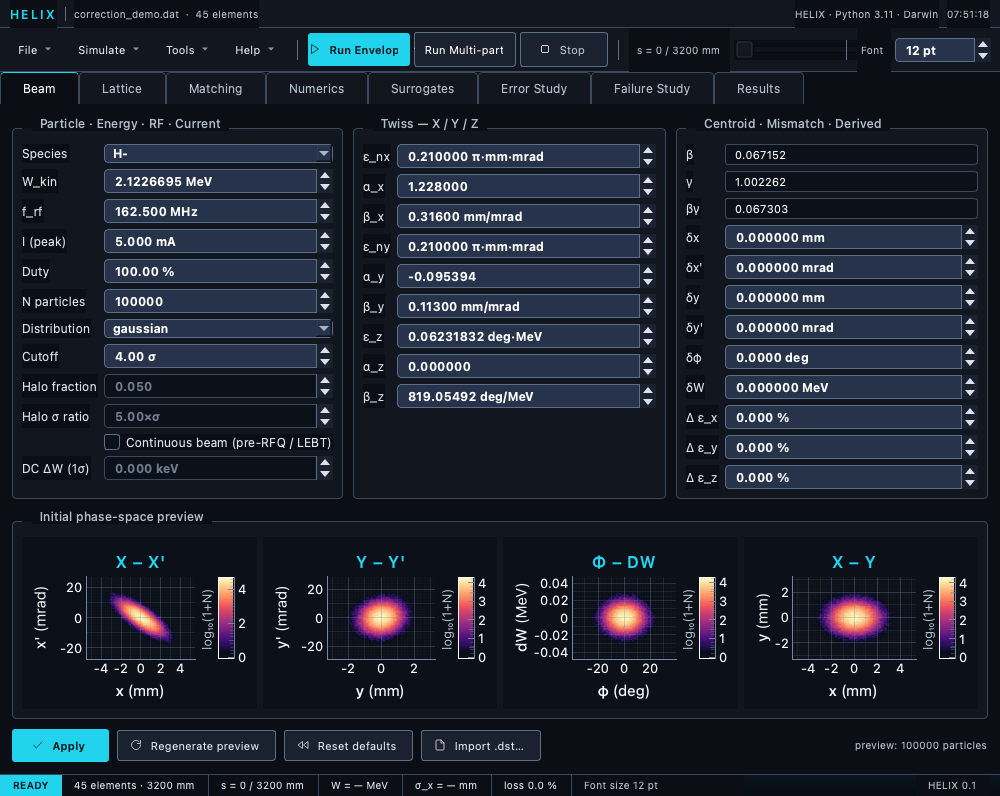
The full window — File/Simulate/Tools/Help menus, Run/Stop toolbar, the eight-tab strip, and the live status bar.
Layout
The main window has a top toolbar (menus + run controls), a horizontal tab bar underneath it, the content panel, and a status bar at the bottom:
┌───────────────────────────────────────────────────────────────────────────┐
│ File  Simulate  Tools  Help │ [Run Envelope] [Run Multi-particle] [Stop]  │
│                             │ s = 0 / — mm [──slider──]        Font [pt]  │ ← Toolbar
├───────────────────────────────────────────────────────────────────────────┤
│ Beam│Lattice│Matching│Numerics│Surrogates│Param Study│Error Study│Failure Study│Results│ ← Tab bar
├───────────────────────────────────────────────────────────────────────────┤
│                                                                           │
│                             Tab content                                   │
│                            (varies per tab)                               │
│                                                                           │
├───────────────────────────────────────────────────────────────────────────┤
│ READY │ 245 elements · 18957 mm │ s = 0 / 18957 mm │ σ_x │ loss │ ...     │ ← Status bar
└───────────────────────────────────────────────────────────────────────────┘
The toolbar carries four menus — File, Simulate, Tools,
Help — plus the Run Envelope, Run Multi-particle, and
Stop buttons, the s-cursor slider (which doubles as a run-progress
indicator), and a Font size spinbox. The Simulate menu also
holds Backtrack Distribution… — reconstruct the upstream beam from
the last MP run's exit state or from a measured exit-plane .dst (see
the workflow).
The Tools menu holds the assistant, the Python console, the transfer-
and sigma-matrix views, Parameter Scan… and Orbit-Response Calibration
(LOCO)… — load a measured orbit-response matrix, compare it with the model
and recalibrate the quads/trims/BPMs (see the CLI page
orm).
Tabs
Left to right:
| Tab | Purpose |
|---|---|
| Beam | configure species, energy, current, distribution, Twiss |
| Lattice | view/edit lattice elements, import .dat |
| Matching | SET/ADJUST cards interactive editor, run matcher |
| Numerics | space-charge grid, kernel, GPU/CPU, integrator settings + convergence scans |
| Surrogates | train / engage ML surrogates for field-map elements |
| Param Study | multi-parameter studies — per-run folders, resume, oat/zip/grid/random/lhs strategies |
| Error Study | tolerance studies — element + beam errors, run ensembles |
| Failure Study | element-failure sweeps (off/detune/partial) + compensation |
| Results | post-tracking diagnostics — emittance, halo, loss, IBS, magstrip |
Each tab gets its own chapter:
- Beam tab
- Lattice tab
- Matching tab
- Numerics tab
- Surrogates tab
- Param Study tab
- Error Study tab
- Failure Study tab
- Results tab
- Workflows — "I want to do X, where do I click"
Common operations
| Goal | Where |
|---|---|
| Create a new project | File → New Project… (Ctrl+N) or toolbar New |
Open a .dat lattice |
File → Open Lattice… (Ctrl+O) or Lattice tab → Open… |
Open a project (.lgproj) |
File → Open Project… (no shortcut) |
Save the lattice .dat |
File → Save Lattice (Ctrl+S) |
| Save the project | File → Save Project (writes the current .lgproj; Save Project As… picks a new file) |
| Run tracking | toolbar Run Envelope (Ctrl+R) or Run Multi-particle (Ctrl+Shift+R) |
| Cancel a long run | toolbar Stop |
| Inspect an element | click it in the Lattice tab list |
| Run a parameter study | Param Study tab → add parameters → Start study |
| Add element error | Error Study tab → Element errors form |
| Plot results | Results tab → click any tile |
Status bar
The bottom strip shows transient, auto-clearing messages (save / export confirmations, element edits) so every action gets visible feedback. It also carries a ● unsaved pill that lights when the lattice has uncommitted edits, a state pill that flips between READY / RUNNING / DONE, and permanent segments for the loaded lattice (element count + total length), the s-cursor position, the reference energy, the end-of-run σ_x, and the loss percentage.
Settings persistence
The GUI uses QSettings (organisation Linac_Gen, application
Interphase) to remember:
- Last opened project / lattice path (and last-used directory).
- Window geometry.
- Recently used projects.
- Font size.
- Calculation directory (where auto-saved HDF5 dumps land).
- Numerics-tab section collapse states.
These persist across sessions in ~/.config/Linac_Gen/ (Linux/WSL),
macOS CFPreferences, or the Windows registry. Space-charge / solver
settings are not stored in QSettings — they are serialised into
the .lgproj project file instead.